
Environment Setup#
This guide will walk you through setting up your environment for automated systematic literature searches.
Prerequisites Check#
Before we begin, let’s check what you need:
Python 3.10 or 3.11 (3.9 at minimum)
Package manager (conda/pip)
Code editor (VS Code recommended)
Internet connection
Git (for cloning and version control)
API keys (Scopus, IEEE) and an email for PubMed
Institutional database access
Ollama (for AI screening), Node.js (for more PDF downloads)
Step 1: Install Python Environment Manager#
If you already have Anaconda, Miniconda, Miniforge, or Mamba installed, you can skip to Step 2.
Option A: Miniforge (Recommended)#
Miniforge is a minimal conda installer with conda-forge as the default channel.
Windows:
Download the installer: Miniforge3-Windows-x86_64.exe
Run the installer and accept default options
At Advanced Installation Options, consider checking:
✅ “Add Miniforge3 to my PATH environment variable” (recommended)
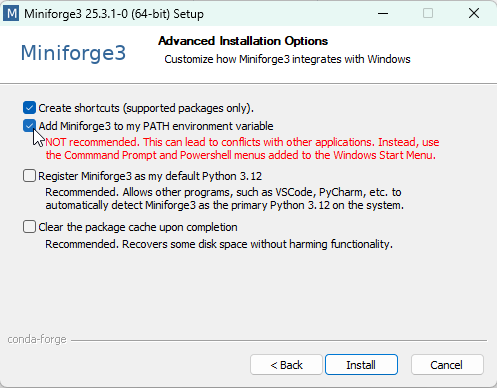
Why add to PATH?
Adding to PATH allows you to use
condacommands from any terminal, not just the Miniforge Prompt.
macOS/Linux:
# Download and run the installer
wget https://github.com/conda-forge/miniforge/releases/latest/download/Miniforge3-Linux-x86_64.sh
bash Miniforge3-Linux-x86_64.sh
On macOS, download the Miniforge3-MacOSX-arm64.sh (Apple silicon) or Miniforge3-MacOSX-x86_64.sh (Intel) installer from the same releases page instead.
Option B: Anaconda (Alternative)#
Download from anaconda.com/download and follow the installation wizard.
Step 2: Install Code Editor#
Visual Studio Code (Recommended)#
Download from code.visualstudio.com
Install with default settings
Install recommended extensions:
Python (by Microsoft)
Jupyter (by Microsoft)
Markdown All in One
YAML (by Red Hat) - helpful for editing
config.yaml
Alternative Editors
You can also use JupyterLab, PyCharm, Spyder, or any editor you prefer.
Step 3: Create Virtual Environment#
Virtual environments keep your project dependencies isolated. Let’s create one for our systematic review tools.
Open Your Terminal#
Windows:
If you added conda to PATH: Use PowerShell, Command Prompt, or Windows Terminal
If not: Search for “Miniforge Prompt” in Start menu
macOS/Linux:
Open Terminal application
Create the Environment#
# Create a new environment named 'autosearch' with Python 3.10
conda create -n autosearch python=3.10 -y
# Activate the environment
conda activate autosearch
You should see (autosearch) appear in your terminal prompt:
(autosearch) C:\Users\YourName>
Environment Activation
You’ll need to activate this environment every time you start a new terminal session:
conda activate autosearch
The name autosearch is not arbitrary: if you start Review Buddy’s main.py from another environment that lacks its dependencies, it re-launches itself inside autosearch automatically.
Step 4: Install Review Buddy#
Review Buddy is a toolkit for systematic reviews: search, screen and download, run with one command.
Clone the Repository#
# Clone from GitHub
git clone https://github.com/leonardozaggia/review_buddy.git
cd review_buddy
Or download the ZIP file from GitHub and extract it.
Install Dependencies#
# Install required packages
pip install -r requirements.txt
This installs everything Review Buddy uses: the core packages (requests, pandas, PyYAML, bibtexparser, rispy, …), curl_cffi for reliable downloads, langdetect for language filtering, scholarly for Google Scholar, and the optional real-browser fetcher (camoufox, playwright). The Review Buddy Installation Guide explains what each one is for.
Configure API Keys#
# Create .env file from template
cp .env.example .env
The .env file is already in Review Buddy’s .gitignore, so your keys stay private.
Every line in .env starts commented out. Uncomment (remove the #) and fill in only the ones you have:
# Recommended: Scopus (best coverage)
SCOPUS_API_KEY=<your real key>

# Recommended: PubMed (biomedical papers) - any valid email
PUBMED_EMAIL=<your real email>

# Optional - leave commented out unless you have a value
#UNPAYWALL_EMAIL=
#IEEE_API_KEY=
Don’t leave placeholder values
An invented value such as my_key_here is sent to the API as a real key, and the API rejects every request - PubMed then returns 0 papers without an obvious error. Comment out what you don’t fill in.
Create Your Run Configuration#
# Create config.yaml from template
cp config.example.yaml config.yaml
config.yaml holds your query, years, databases and filters. You’ll edit it in the Usage Examples.
Verify Installation#
# Show the available options
python main.py --help
See the Review Buddy Installation Guide for a 1-minute test run and the optional services (Ollama, Zotero, real-browser fetcher).
Step 5: Database API Keys (Optional)#
Some databases require API keys for full access. Here’s how to obtain them:
Scopus API Key#
Create an account or log in
Navigate to “My API Key”
Request an API key (may require institutional email)
IEEE Xplore API Key#
Visit IEEE Developer Portal
Create an account or log in
Navigate to “My APIs”
Request an API key
PubMed#
No key is needed - set PUBMED_EMAIL to any valid email. An optional PUBMED_API_KEY from your NCBI account raises the rate limit from 3 to 10 requests per second.
Storing API Keys
The .env file from Step 4 is all you need. If you prefer real environment variables (for example on a shared server), use the same names Review Buddy reads from .env:
Windows (PowerShell):
$env:SCOPUS_API_KEY = "your-scopus-api-key"
$env:IEEE_API_KEY = "your-ieee-api-key"
macOS/Linux:
export SCOPUS_API_KEY="your-scopus-api-key"
export IEEE_API_KEY="your-ieee-api-key"
For permanent storage, add these to your .bashrc, .zshrc, or PowerShell profile.
Step 6: Verify Your Setup#
Let’s run a quick check to ensure everything is working:
For Review Buddy (Recommended)#
# Navigate to review_buddy folder
cd review_buddy

# Check dependencies and credentials without downloading anything
python main.py --skip-download
main.py first runs a preflight check and lists anything that is missing, with the command to fix it - for example:
  ⚠ SCOPUS_API_KEY not set (Scopus will be skipped)
      Add it to .env
If preflight passes, it goes on to run the search and the filter with the query in query.txt, writing the results to results/.
Troubleshooting#
Common Issues#
Solution:
Use Miniforge Prompt instead of regular terminal
OR reinstall with “Add to PATH” option checked
Solution:
Run terminal as Administrator (Windows)
Use
sudoon macOS/LinuxCheck firewall/antivirus settings
Quick Reference Card#
# Activate environment
conda activate autosearch

# Run the full pipeline (search → keyword filter → download)
python main.py

# Same, with the AI (Ollama) filter
python main.py --ai

# Search and filter only, with another config file
python main.py --config my_review.yaml --skip-download

# View all options
python main.py --help

# Deactivate environment (when done)
conda deactivate
What’s Next?#
🎉 Congratulations! Your environment is ready. Choose your path:
➡️ Review Buddy Tutorial - One-command pipeline with keyword and AI screening
Additional Resources#
Need Help?